
Instead of retyping completed cleaning jobs into MYOB, connect your job records to an integration that checks the customer, creates the sales invoice and writes the invoice reference back to the job. Use this 2026 workflow to automate bond clean invoicing with a review gate before anything reaches the customer.
- To connect MYOB to bond clean invoicing, check product compatibility before configuring triggers or field mappings.
- Create sales invoices for cleaning customers; record supplier invoices as purchases, not sales.
- Use a permanent job identifier to prevent repeat events from creating duplicate invoices.
- Sparkleclean provides bond cleaning for residential tenants; this guide does not establish a supported MYOB integration.
Why this matters
A cleaning booking, a completed job and a paid invoice are different records. Treating them as interchangeable creates avoidable problems: customers receive invoices before work finishes, extras disappear from the paperwork, or a second job update creates another invoice.
Sparkleclean bond cleaning is for residential tenants seeking professional end-of-lease cleaning. If you need the cleaning service rather than an accounting connection, start with Sparkleclean. The workflow below is for the business issuing cleaning invoices, not a tenant uploading a receipt.
The main decision comes first: are you invoicing your customer, or recording an invoice received from a cleaner? This guide follows the customer-invoicing route. A property manager receiving a cleaning invoice needs a supplier-purchase workflow instead.
Before you start
- Accounts and access: Have authorised access to the correct MYOB business and your booking or job-management system. Confirm that your proposed connector or developer-built integration supports the exact MYOB product, business file and sales-invoice operations you need.
- Job records and accounting rules: Prepare a permanent job identifier, billing customer, service address, completion date, approved service lines and billing terms. Ask your bookkeeper to approve income-account mapping and tax treatment before testing.
- The gotcha: Do not assume that creating an invoice also sends it, records payment or supplies a cleaning-completion record. Check each action separately, including whether the integration can save an invoice without emailing it.
For your 2026 setup, write down the MYOB product and the integration method before building anything. Stop here if the connection cannot search for existing records or return the identifier of a newly created invoice; duplicate prevention depends on those capabilities.
Choose your invoice-release workflow
Best for an initial rollout: automated preparation with human approval. This separates data entry from the decision to issue an invoice. It also exposes mapping errors before customers see them.
| Workflow | Best for | Advantage | Limitation |
|---|---|---|---|
| Automated preparation, manual release | Businesses establishing their invoice checks | Lets a reviewer confirm the customer, scope and tax treatment | Someone must review the invoice before release |
| Automatic creation and sending | Established workflows with tested records and clear billing rules | Removes the separate release task | Incorrect source data can reach the customer without review |
These are workflow designs, not claims about features included in every MYOB connection. Choose a design only after confirming that your integration supports the required actions.
If the integration cannot prepare an unsent invoice safely, route the job into an approval queue before the invoice-creation action. Keep the approval outside MYOB if that is what your supported setup requires.
Job trigger and eligibility rules
Define the billable event
- Choose the event that makes a job ready for invoicing. For completion-based billing, require confirmed work completion and approved service lines, rather than merely a booking date passing.
- Give every job a permanent identifier. Keep that identifier unchanged when the customer reschedules or the team edits access instructions.
- Add an eligibility check before the accounting action. Require the billing customer, service address, approved lines, tax mapping and completion confirmation.
- Exclude cancelled jobs and records that already contain an invoice identifier. Send incomplete records to a named reviewer instead of attempting invoice creation.
- Record the event that passed the checks. Preserve its job identifier and revision so you can explain why invoicing started.
Expected result: an eligible completed job enters the invoice workflow; an incomplete, cancelled or already-invoiced job does not.
Keep operational completion separate from financial approval. A cleaner can confirm that the work is finished while the office still needs to resolve an agreed variation. Your trigger should respect both decisions.
For a 2026 rollout, document the chosen event in plain language: “Invoice after completion and billing approval.” Use that sentence as the rule against which you test the automation.
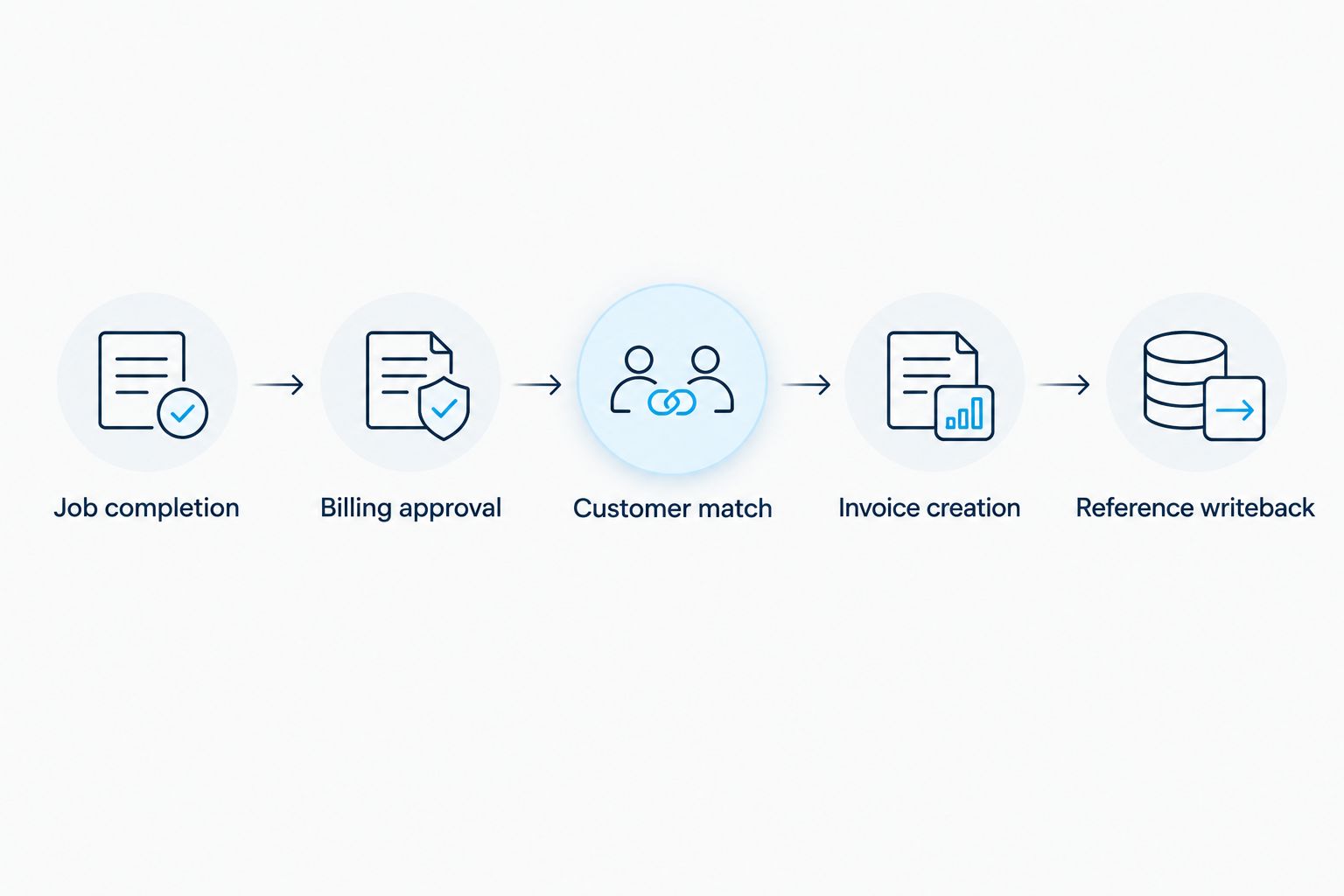
Keep one invoice relationship per job
Use the job identifier as the connection between the operational record and the accounting record. Customer names and addresses are not reliable substitutes: a customer can book again, and multiple jobs can occur at the same property.
Set a target of 1 sales invoice per approved job for this workflow. Handle variations through a controlled correction process rather than allowing every update to create another invoice.
MYOB connection and field mapping
Authorise the correct business
- Open the account-authorisation process supplied by your chosen integration. Sign in through the legitimate MYOB authorisation flow rather than sharing a password with an implementer.
- Select and verify the intended business or company file. Compare its identity with the business that will issue the invoice.
- Grant only the access needed for the supported workflow. Confirm who can reconnect the integration if access expires or an authorised staff member leaves.
- Test access by reading a known customer record before enabling invoice creation. Check that the returned customer belongs to the intended business.
Expected result: the integration reads the correct business records under an authorised connection, with a named person responsible for maintaining access.
Do not activate customer emails during this stage. A successful sign-in proves account access, not correct invoice mapping.
Map the billing record
Define the following as your integration's mapping specification, not as assumed MYOB screen labels. Select the corresponding fields exposed by your supported connection.
| Source information | Destination purpose | Validation before creation |
|---|---|---|
| Permanent job identifier | External reference or integration lookup record | Matches the job and has not been invoiced already |
| Billing customer identifier | Customer relationship | Points to the party responsible for payment |
| Billing email | Intended invoice recipient | Matches the approved billing instructions |
| Service address | Description or supported reference field | Identifies the property cleaned |
| Completion date | Service description or supported service-date field | Reflects the completed work |
| Approved cleaning lines | Invoice descriptions and line values | Matches the accepted scope and authorised variations |
| Income account and tax treatment | Accounting classification | Approved by the bookkeeper |
| Payment terms | Due-date calculation | Matches the agreed billing terms |
- Match an existing customer using a stable customer identifier where possible. Route uncertain matches for review; do not create a new customer merely because a name looks different.
- Map the billing party separately from the property contact. A tenant, property manager and owner are not automatically interchangeable invoice recipients.
- Transfer approved service descriptions. Keep bond cleaning, carpet steam cleaning, oven deep cleaning and window cleaning separate when they are separate approved lines.
- Confirm whether source line values include tax. Prevent the destination from applying tax on top of a value that already includes it.
- Inspect a prepared invoice against the source job before allowing automatic release.
Expected result: the invoice identifies the correct customer and property, describes the approved work and follows the agreed accounting treatment.
Sparkleclean offers bond cleaning, including carpet steam cleaning, oven deep cleaning and window cleaning. Those service categories do not establish what any individual booking includes. Your automation must use that booking's approved scope, not a blanket list of services.
For customer-facing paperwork, also check the distinction between invoicing and getting a cleaning receipt for your real estate agent.
Invoice creation and reference writeback
Create, record and release
- Search your integration's job-to-invoice records before creating an invoice. Continue only when no invoice has already been linked to that job.
- Lock or reserve the job for invoicing while processing it. This prevents simultaneous completion events from both passing the duplicate check.
- Create the invoice using the approved mapping. Keep customer sending disabled until your release checks pass.
- Capture the invoice identifier returned by MYOB. Save it against the source job, together with the creation outcome and the processed job revision.
- Release the invoice through the supported sending process after approval. Record the sending outcome separately from invoice creation.
Expected result: the job points to its accounting invoice, and the workflow distinguishes “created” from “sent”.
Never retry an uncertain invoice creation blindly. If the request times out, first check whether an invoice was created. A connection failure after creation can otherwise turn a harmless retry into a duplicate charge.
Run acceptance tests
For your 2026 acceptance check, use 3 test jobs: a complete job, an incomplete job and a job whose completion event is repeated. Use a safe test environment or controlled records that cannot email real customers.
- Complete job: confirm the correct customer, service address, line descriptions, tax treatment and invoice reference.
- Incomplete job: remove a required billing detail and confirm that processing stops with a useful review message.
- Repeated event: submit the same completion event again and confirm that no additional invoice appears.
Verify 2 stored identifiers after the successful test: the source job identifier and the destination invoice identifier. Both are needed to trace the transaction without relying on a customer's name.
Do not switch on automatic sending until these checks pass. Retain the results with your workflow configuration so later changes can be tested against the same cases.
Update an invoice when a cleaning job changes
A second workflow handles approved changes after the initial job record was created. Keep it separate from the new-invoice trigger: editing access notes should never restart billing.
- Trigger only when billing-relevant information changes, such as an approved service line or billing recipient.
- Retrieve the stored invoice identifier. If none exists, return the job to the normal eligibility checks rather than assuming creation failed.
- Check whether the invoice has been sent or paid before making changes. Apply the correction process approved by your bookkeeper and supported by your MYOB product.
- Require approval for financial changes. Preserve the previous scope and the reason for the revision.
- Record the correction against the existing job-to-invoice relationship. Notify the responsible person when a replacement document or customer explanation is required.
Expected result: approved variations follow an auditable correction path instead of creating unrelated invoices.
Keep a return visit separate from a new charge. A cleaning re-attendance does not, by itself, establish that additional billing is authorised.
Troubleshooting
A repeated job event creates another invoice
Check whether the workflow searches by permanent job identifier before creation. Add a processing lock and write back the returned invoice identifier immediately; do not rely only on a final “workflow finished” flag.
The invoice is attached to the wrong customer
Replace name-only matching with a stored customer identifier. Review existing duplicates before changing the rule, and separate the billing party from the contact who organised property access.
The invoice exists, but the customer has not received it
Check the sending action and recipient independently of invoice creation. Do not recreate an invoice to solve an email problem; resend the existing document through the supported process after confirming the address.
Invoice totals differ from the approved job
Compare tax-inclusive settings, quantities, rounding and approved variations. Pause release until the source job and invoice agree; do not hide the difference with an unexplained adjustment line.
The connection stops processing jobs
Check authorisation, business-file selection and the integration's error log. After restoring access, reconcile failed jobs against existing invoices before replaying them, especially when earlier requests timed out.
Customise your workflow
Extend the process only after the invoice relationship is reliable. Useful additions include an internal notification for missing billing details, a review queue for scope changes and a reconciliation report showing completed jobs without invoice references.
Keep payment recording separate. An issued invoice is not evidence of payment, and a completed cleaning job is not evidence that a bond refund has been approved.
For your 2026 maintenance review, check who owns the connection, who approves accounting changes and who resolves failed jobs. Repeat the acceptance tests after changing field mappings, job statuses or the integration method.
If your scheduling process is also being connected, start with the booking-to-completion handover. Accurate invoicing depends on knowing which job actually happened, not just which visit appeared in a calendar.
FAQ
How do I connect MYOB to bond clean invoicing?
Use a compatible integration to pass approved job data into MYOB sales invoices and save the returned invoice identifier against each job. Confirm support for your exact MYOB product before configuring customer matching, tax mapping and sending.
Does Sparkleclean have a native MYOB integration?
This guide does not establish a native MYOB integration for Sparkleclean. Confirm the proposed connection with the cleaning provider and integration supplier before relying on automatic data transfer.
Should a property manager create a sales invoice for a cleaner's invoice?
No. A cleaning invoice received from a supplier belongs in the appropriate purchase workflow, while a sales invoice records an amount your business charges its customer. Have your bookkeeper confirm the transaction treatment.
Can I invoice automatically when a bond clean is booked?
Use the billing event agreed with your customer, not an assumption that every booking is immediately billable. For completion-based billing, require completion and billing approval before invoice creation.
How do I stop duplicate MYOB cleaning invoices?
Link each permanent job identifier to its returned invoice identifier and check that relationship before creation. Also prevent simultaneous processing and investigate uncertain results before retrying.
Will creating a MYOB invoice automatically email the tenant?
Treat invoice creation and customer sending as separate actions. Confirm the sending behaviour of your supported integration, then test the recipient and release rule before enabling customer emails.
Can a cleaning invoice prove that my bond will be refunded?
No. A cleaning invoice documents a charge for the described work; it does not establish the outcome of a bond assessment. Keep completion records and payment evidence separate from the invoice.
One last thing
The most important automation record is the link back to the job. Without it, a timeout becomes a guessing exercise: create again and risk duplication, or stop and risk missing an invoice.
Save that relationship before adding reminders, reporting or automatic emails. A traceable invoice is more useful than a fast invoice nobody can reconcile.
Related guides
- VaultRE to scheduled vacate cleaning workflow
- Google Calendar to same-day bond clean bookings
- Connect PropertyMe to automatic bond clean bookings
SparkleClean's end-of-lease service comes with a 72-hour re-clean guarantee. Get an instant price — no hidden fees, book in under 3 minutes.