
Instead of copying move-out details into emails, connect Zapier to bond clean booking triggers using Google Sheets and Gmail so complete requests reach your booking coordinator automatically. This 2026 guide creates a request for a Sparkle bond clean, not a confirmed cleaner appointment.
- Connect Zapier to bond clean booking triggers with Google Sheets, an eligibility filter and Gmail.
- Keep Sparkle bond cleaning requests separate from confirmed appointments; sending an email does not secure a booking.
- Use a stable request reference, explicit cleaning dates and a human approval checkpoint.
- Choose a new-row trigger for completed requests; use an updated-row trigger when dates or instructions change.
Why this matters
A move-out date is not a cleaning instruction. You also need the property address, requested cleaning date, contact details and service scope before someone can assess the request.
Automate the handover, not the promise. Zapier can pass information between connected accounts, but an email action does not establish that a cleaner has accepted the job. Keep the request pending until you receive explicit confirmation.
Sparkle bond cleaning is best for residential tenants seeking professional end-of-lease cleaning. The service covers bond cleaning, including carpet steam cleaning, oven deep cleaning and window cleaning; this workflow organises the request rather than replacing service confirmation.
The benefit is a consistent handover. The limitation is equally clear: automation does not inspect the property, resolve access arrangements or decide what work the cleaner has agreed to perform.
Before you start
- Accounts and access: Have a Zapier account, an editable Google Sheets spreadsheet and a Gmail account you can authorise. Confirm that your accounts support the trigger, filter and email actions before building the workflow.
- Booking materials: Prepare the property address, tenant contact, requested cleaning date, inspection date, cleaning requirements and an authorised internal recipient. Use dummy personal details while testing.
- The gotcha: A New Spreadsheet Row trigger watches for new rows, not later edits to an existing draft. For this version, add completed requests to a dedicated intake worksheet; choose the updated-row variant below if requests develop over time.
Keep access codes and unnecessary tenancy documents out of the spreadsheet and emails. Send only the information the booking coordinator needs, and restrict spreadsheet access to the people handling the request.
Choose the trigger that matches your process
These are two configurations of the same request workflow, not two different cleaning services. Choose according to when your source record becomes ready for action.
| Configuration | Best for | Advantage | Limitation |
|---|---|---|---|
| New Spreadsheet Row | Completed requests added to a dedicated intake worksheet | A clear handover point with fewer incidental edits | Later changes to that row do not trigger this workflow |
| New or Updated Spreadsheet Row | Requests with changing dates or service instructions | Supports revisions without creating another source record | Requires careful trigger-column selection and duplicate checks |
Use the new-row version first when you control the intake process. The updated-row version suits a shared worksheet, but it needs a deliberate release signal rather than treating every edit as a new booking instruction.
Intake worksheet and trigger
Build the source record before opening the Zap editor. For your 2026 setup, create an intake worksheet named Bond clean requests and a separate worksheet named Request log.
- Add these column headers to the intake worksheet: Request reference, Request status, Property address, Tenant name, Tenant email, Tenant phone, Requested clean date, Inspection date, Service scope and Access contact.
- Give each request a stable reference that does not change when the tenant changes dates. Do not use the property address alone: the same property can have separate tenancies and separate cleaning requests.
- Enter a complete dummy request. Use an unambiguous date such as 20 October 2026 rather than a shortened date, and identify the property's city so the coordinator can interpret local times.
- In a new Zap, select Google Sheets for the trigger app and New Spreadsheet Row for the trigger event. Connect the Google account that can access the worksheet.
- Select the correct Spreadsheet and Worksheet, then click Test trigger. Check that the sample contains the full address, request reference and requested cleaning date.
Expected result: Zapier displays one complete source record with separate, usable fields. If the sample is an old or incomplete row, correct the worksheet selection or load another sample before continuing.
Do not insert explanatory notes above the header row or combine several requests in one cell. Keep each request on its own row so the mapping remains readable.
Eligibility filter and field checks
The filter decides whether the request is ready to leave the worksheet. Use your own controlled status values rather than guessing readiness from a date or a tenant's free-text note.
- Add Filter by Zapier after the trigger. In Only continue if, map Request status and choose (Text) Exactly matches, with Ready as the comparison value.
- Add required-field conditions for Request reference, Property address, Tenant email, Requested clean date and Service scope. Use Exists for these checks and require all conditions to pass.
- Test the filter against the completed sample. Then test a sample marked Draft and another with an empty requested cleaning date; both should stop before the email action.
- Review the actual contents of the fields. Exists checks presence, not whether an email address is valid or whether the requested cleaning date falls before the inspection.
- Establish the human check: the coordinator must verify the date sequence, scope and access arrangements before approaching the cleaner or confirming anything to the tenant.
Expected result: Complete rows marked Ready continue; drafts and records missing required fields stop. Passing the filter means the request is complete enough for review, not that its details have been approved.
For this 2026 workflow, use three distinct statuses in your operating process: Draft, Ready and Confirmed. Keep Confirmed reserved for an accepted arrangement, not a successful Zap run.
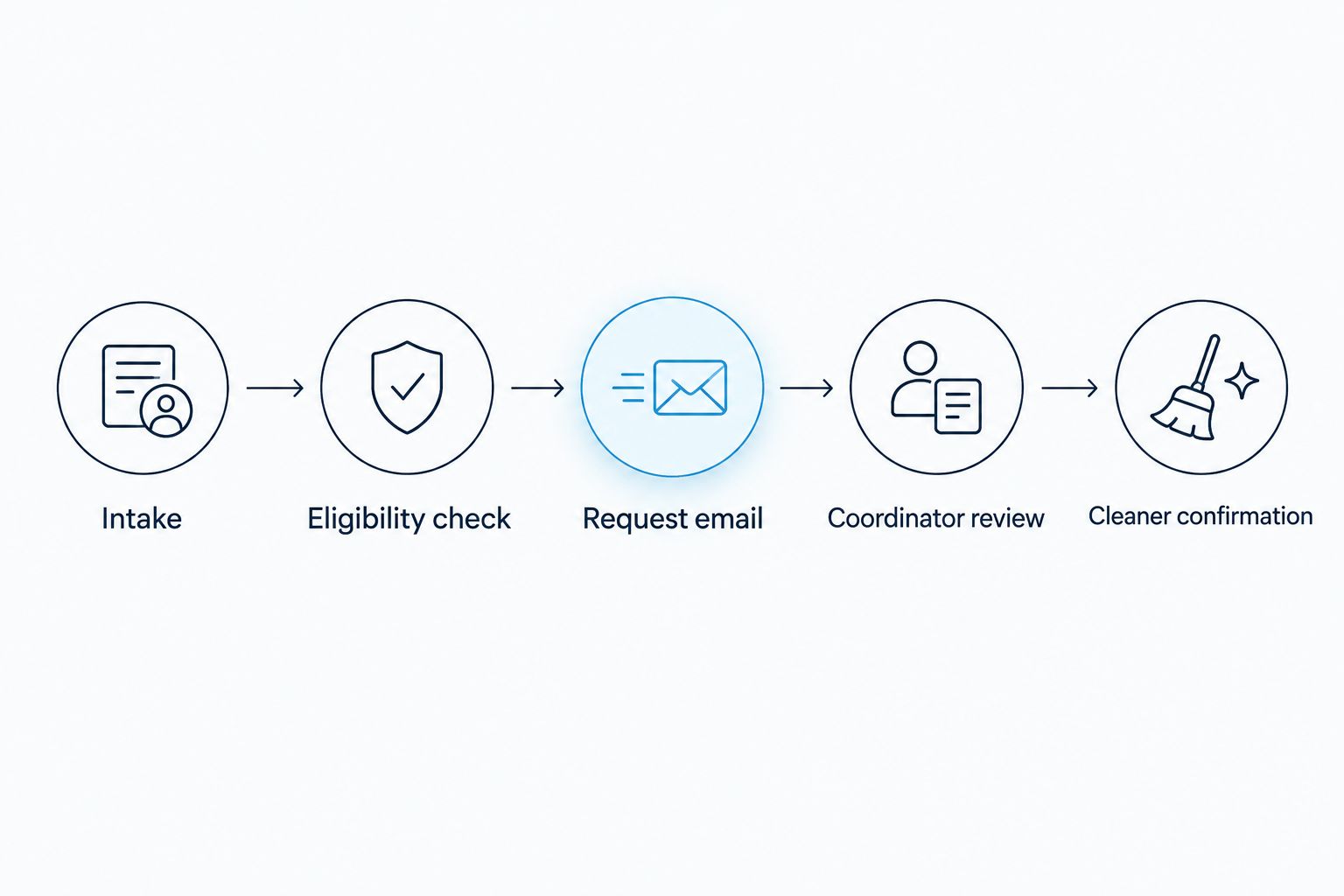
The handover should follow this order: Intake, Eligibility check, Request email, Coordinator review, Cleaner confirmation. Do not skip coordinator review because an automated message looks complete.
Request email and tracking log
Send the first version to an internal coordinator. That keeps test messages and incomplete arrangements away from tenants and avoids presenting an unaccepted request as a booking.
- Add Gmail as the action app and select Send Email. Connect the authorised sender account and enter the coordinator's approved address in To.
- In Subject, combine the request reference with Bond clean request — pending confirmation. Keep personal information out of the subject where it is not needed.
- In Body, map the property address, requested cleaning date, inspection date, service scope, tenant contact and access contact. Add this instruction: Review this request and obtain cleaner confirmation before confirming the appointment to the tenant.
- Include Sparkle as the intended bond cleaning provider only when that is the tenant's actual choice. Do not invent a provider email address or send to an address you have not checked.
- Add a Google Sheets action using Create Spreadsheet Row, targeting Request log. Record the request reference, property address, requested date and a status of Request sent — awaiting review.
Expected result: The coordinator receives a readable request, and the separate log records the handover. Neither output should describe the clean as confirmed.
The log is a record, not automatic duplicate protection. Before acting, the coordinator must check whether that reference already has an active request or confirmed arrangement. Keep logging outside the intake worksheet to avoid feeding changes back into an updated-row trigger.
What the request email should make clear
Separate the tenant's requested work from work the cleaner has accepted. For example, list carpet steam cleaning or window cleaning under Requested scope until the provider confirms the arrangement.
Include the inspection date as context, not as the assumed cleaning date. Likewise, naming an access contact does not mean keys, lift access or entry permission have been arranged.
Testing and release
Test the whole handover before enabling it for real requests. A successful action test proves that the configured action worked with that sample; it does not prove every future request will contain sensible instructions.
- Send 1 test request using dummy tenant details and your internal recipient. Read the delivered email rather than relying only on the editor's success message.
- Check the log against the email. The request reference, address and requested date must match; a blank field usually means the wrong source field was mapped.
- Test 1 draft row and 1 incomplete row. Confirm that neither reaches the email action, then replace the test sample with a complete Ready record.
- Click Publish when the configuration is ready. Add a fresh, complete Ready row and confirm that the live workflow sends the request and creates the log entry.
- Assign someone to check Zap History and the coordinator inbox. Document who handles failed runs, duplicate requests and date changes before more people start using the sheet.
Expected result: An eligible live record produces a request email and a matching log entry; ineligible records stop at the filter.
Record the workflow owner and review date in your 2026 operating notes. That gives the team a named contact when a connected account loses access or a worksheet changes.
Send a revised request when details change
Use this variant when the tenant's move-out arrangements change after the initial handover. An updated request must revise the existing conversation, not silently create another appointment.
- Create a separate Zap with Google Sheets and New or Updated Spreadsheet Row. Add a Request revision column to the intake worksheet and select it as the Trigger Column.
- Keep the same request reference. Change Request revision only after the revised date, scope and access details are complete; unrelated edits should not release another message.
- Reuse the Ready filter and required-field checks. Send the email to the coordinator with Revised bond clean request and the original reference in the subject.
- Include the complete current request and a short explanation of what changed. Ask the coordinator to check the existing arrangement and obtain acceptance of the revision.
- Record the revision in Request log. For a cancellation, use an explicit cancellation process with human follow-up rather than treating an empty date as an instruction.
Expected result: A deliberate revision produces a traceable update under the original reference. The previously agreed date remains unresolved until the coordinator and cleaner acknowledge the change.
Do not run both versions against the same intake records without testing their overlap. A new row can meet the updated-row trigger as well, creating two handovers for the same request.
Troubleshooting
The new request never reaches Gmail
Check Zap History to distinguish a missing trigger from a stopped filter or failed action. Confirm the Zap is published, the worksheet is correct and the row was added after release; editing an old row does not test the new-row configuration.
The filter stops a complete request
Compare the actual status with Ready and inspect the mapped fields. Remove accidental spaces in the source value and check that a column change has not left the filter pointing at the wrong field.
The coordinator receives duplicate emails
Check for overlapping Zaps, repeated source rows and manually replayed runs. Use the request reference to identify the existing handover before taking action; if email succeeded but logging failed, inspect the run before replaying it.
The date is unclear or incorrect
Replace ambiguous date text with a fully written date and include the city. When using appointment times, check the source, Zapier and destination timezone settings rather than assuming the sender's timezone matches the property.
The email succeeds but nothing is booked
That is the expected boundary of this setup. The coordinator must review the request, contact the provider through a verified channel and receive confirmation before telling the tenant that the clean is arranged.
Customise your workflow
Expand the information passed to the coordinator before adding more automated actions. Property type, furniture removal timing and requested cleaning tasks help the recipient assess the request without another round of questions.
Keep instructions structured. Use separate fields for requested carpet, oven and window work instead of burying everything in a general notes cell, and retain a clear distinction between requested and accepted scope.
For your 2026 review, check the workflow after changing a column header, sender account or intake process. Repeat the eligible, draft and incomplete tests before relying on the revised setup.
FAQ
How do I connect Zapier to bond clean booking triggers?
Connect a Google Sheets trigger to an eligibility filter and a Gmail request email. Map the property, dates and cleaning scope, then log the handover and require cleaner confirmation before marking the appointment confirmed.
Does sending a Zapier email confirm my Sparkle booking?
No. This workflow sends a Sparkle bond cleaning request for review; it does not create a confirmed appointment. Obtain explicit confirmation through the provider's verified booking process.
What's the best trigger for a completed bond clean request?
New Spreadsheet Row is the better fit when you add complete requests to a dedicated intake worksheet. Use New or Updated Spreadsheet Row when an existing record needs to release later revisions.
Can I change the cleaning date after the request is sent?
Yes, but send a clearly identified revision using the original request reference. The coordinator must check the existing arrangement and obtain acceptance of the new date.
How do I stop duplicate bond clean requests?
Use a stable request reference, avoid overlapping Zaps and check the request log before acting. The basic logging step records requests but does not automatically prevent duplicate email sends.
Can Zapier work directly with my property management software?
A direct workflow depends on the software's supported integration or authorised data connection. Check the available trigger events and permissions before replacing the spreadsheet intake.
Should I include key codes in the automated email?
Keep key codes out of routine automated request emails. Identify an access contact and share sensitive entry instructions through an agreed restricted channel.
One last thing
A successful email followed by a failed logging step is not a failed handover. Check what already happened before replaying the run, or the retry itself can create a duplicate request.
Make that check part of the coordinator's routine. The safest first automation is one that makes requests easier to review without making commitments on anyone's behalf.
Related guides
- Google Calendar to bond clean booking workflow
- Connect PropertyMe to bond clean bookings
- Schedule end-of-lease cleaning around your inspection date
- Bond cleaning checklist for apartments in Australia
SparkleClean's end-of-lease service comes with a 72-hour re-clean guarantee. Get an instant price — no hidden fees, book in under 3 minutes.