
Instead of copying move-out details into a cleaning calendar each day, connect Snug to vacate cleaning schedules through an approved vacate register that feeds your scheduling workflow. Start with confirmed tenancy details, automate the internal scheduling task, and keep cleaner acceptance separate from the calendar entry.
- To connect Snug to vacate cleaning schedules, verify the source connection before automating downstream tasks.
- Use confirmed move-out details, not an application or proposed tenancy date, to trigger vacate cleaning.
- Sparkle provides end-of-lease cleaning for residential tenants; arrange the service separately from your scheduling automation.
- Keep cleaning requests pending until access, scope and the cleaner’s acceptance are confirmed.
Why this matters
A calendar entry is not a confirmed cleaning booking. Your workflow needs to distinguish a proposed date, an approved request and an accepted appointment. Otherwise, a date change can leave the tenant, property manager and cleaner working from different instructions.
Sparkle end-of-lease cleaning is best suited to residential tenants preparing for bond handover. You can discuss the cleaning service with Sparkle, but do not treat that service enquiry as a software connection or an accepted appointment.
For your 2026 setup, build the approval process before connecting systems. This guide describes a downstream scheduling design: it does not assume that Snug provides a particular vacate trigger, export, webhook or cleaning integration.
Before you start
- Source access: Have authorised access to the relevant Snug information and a confirmed source for the outgoing tenant’s move-out details. Ask your account administrator or Snug support which supported connection methods apply to your account before choosing an automation tool.
- Scheduling materials: Prepare a restricted vacate register, a calendar or task system, the cleaning scope, an authorised contact and the inspection and key-handover requirements. Assign someone to approve each request.
- The gotcha: An incoming tenancy date does not establish when the outgoing property will be empty. Keep removal completion, cleaning access and final inspection as separate milestones; do not calculate the clean from an application date alone.
Choose the handoff before configuring anything
Use the simplest method you can verify. Neither a native connector nor an API should become part of the design until the relevant provider confirms the required access and behaviour.
| Workflow option | Best for | Advantage | Limitation |
|---|---|---|---|
| Manual approval register | Teams establishing a reliable process | Lets a person verify every vacate before scheduling | Requires manual entry and review |
| Approved-register automation | Teams with a supported automation connection to their register and calendar | Creates consistent internal tasks after approval | Still needs a verified source handoff and cleaner acceptance |
Start with approved-register automation only after the manual handoff works. Its benefit is consistent task creation; its limitation is that it cannot establish whether a tenant has moved out or a cleaner has accepted the job.
Vacate source and approval register
The register is the control point between tenancy information and cleaning work. The bold labels below are fields you create yourself, not claimed Snug interface labels.
- Verify the source. Ask your administrator to identify where confirmed outgoing-tenancy details are recorded. Establish whether a supported connection can supply those details. If not, have the authorised coordinator enter them manually.
- Create a stable reference. Add Vacate reference and assign a unique reference to each tenancy departure. Do not use the street address alone: the same property can have separate departures over time.
- Separate the dates. Create Move-out date, Removal completion, Requested clean, Inspection date and Key handover. Record times where a time affects access.
- Add approval controls. Create Approval status, Approved by and Approval date. Use your own status values, such as Needs review, Approved, Change pending and Cancelled.
- Restrict the record. Give access only to people coordinating the work. Keep application documents, identity records and unrelated tenancy information out of the cleaning handoff.
Expected result: Every departure has a distinct reference, clearly separated milestones and a named approver. An unreviewed record cannot be mistaken for permission to book cleaning.
For a 2026 handover, record the full date rather than an instruction such as next Friday. Keep the property’s local time zone alongside timed appointments, especially when your coordinator and property are in different states.
Define what approval means
Approval should mean that the coordinator has checked the outgoing tenancy, proposed access, cleaning scope and responsible contact. It should not mean that the cleaning company has accepted the appointment.
Write that distinction into the register instructions. A new staff member should be able to understand the status without reading the email history.
Cleaning scope and access record
Build a usable job brief before creating a scheduling task. A date without scope leaves the cleaner unable to assess the request.
- Record the property. Create Property address, Dwelling type and Cleaning contact. Check the unit number and suburb against the approved record rather than relying on an abbreviated calendar title.
- Define the work. Create Cleaning scope and list the rooms and tasks requested. Record carpet steam cleaning, oven deep cleaning and window cleaning explicitly rather than assuming they form part of every arrangement.
- Confirm access. Create Access coordinator and Access confirmed. Record who will arrange entry, whether furniture will remain, and any building requirements that affect the visit.
- Separate sensitive instructions. Store keys, alarm details and access codes through an appropriately restricted channel. Put the coordinator’s contact details in the task instead of copying sensitive instructions into a widely shared calendar.
- Check the brief. Compare the requested tasks with your bond cleaning checklist for apartments in Australia. Resolve exclusions before sending the request.
Expected result: The scheduling task has enough information for a cleaning discussion without exposing unrelated tenant information or treating an incomplete brief as ready.
Sparkle provides end-of-lease cleaning, including carpet steam cleaning, oven deep cleaning and window cleaning. Confirm the requested work for your property directly; the workflow should record the agreed scope rather than infer it from the service category.
Scheduling trigger and confirmation gate
Configure this stage in a scheduling or automation system whose connection to your register has been verified. Interface names vary by system; use the user-created fields below as the mapping specification, not as instructions for unverified Snug buttons.
- Choose the approval trigger. Configure the supported workflow to act when Approval status becomes Approved. Require Vacate reference, Property address, Requested clean, Cleaning scope and Cleaning contact before creating a task.
- Check for an existing task. Search using Vacate reference. Update the matching task instead of creating another one. If your chosen system cannot perform that check reliably, keep task creation under manual control.
- Create a pending request. Add a task with your own status Awaiting cleaner acceptance. Include the requested date, scope, access coordinator and inspection deadline. Do not label it a confirmed appointment.
- Record the response. Create Cleaner accepted, Confirmed clean and Booking reference in the register. Have the coordinator enter the accepted appointment details after receiving confirmation through the cleaner’s agreed booking channel.
- Publish the appointment. Create or update the calendar entry only after acceptance. Store its reference against the vacate record so later changes target the same entry.
Expected result: Approval creates a traceable internal request. Cleaner acceptance creates the confirmed appointment, and both records retain the same vacate reference.
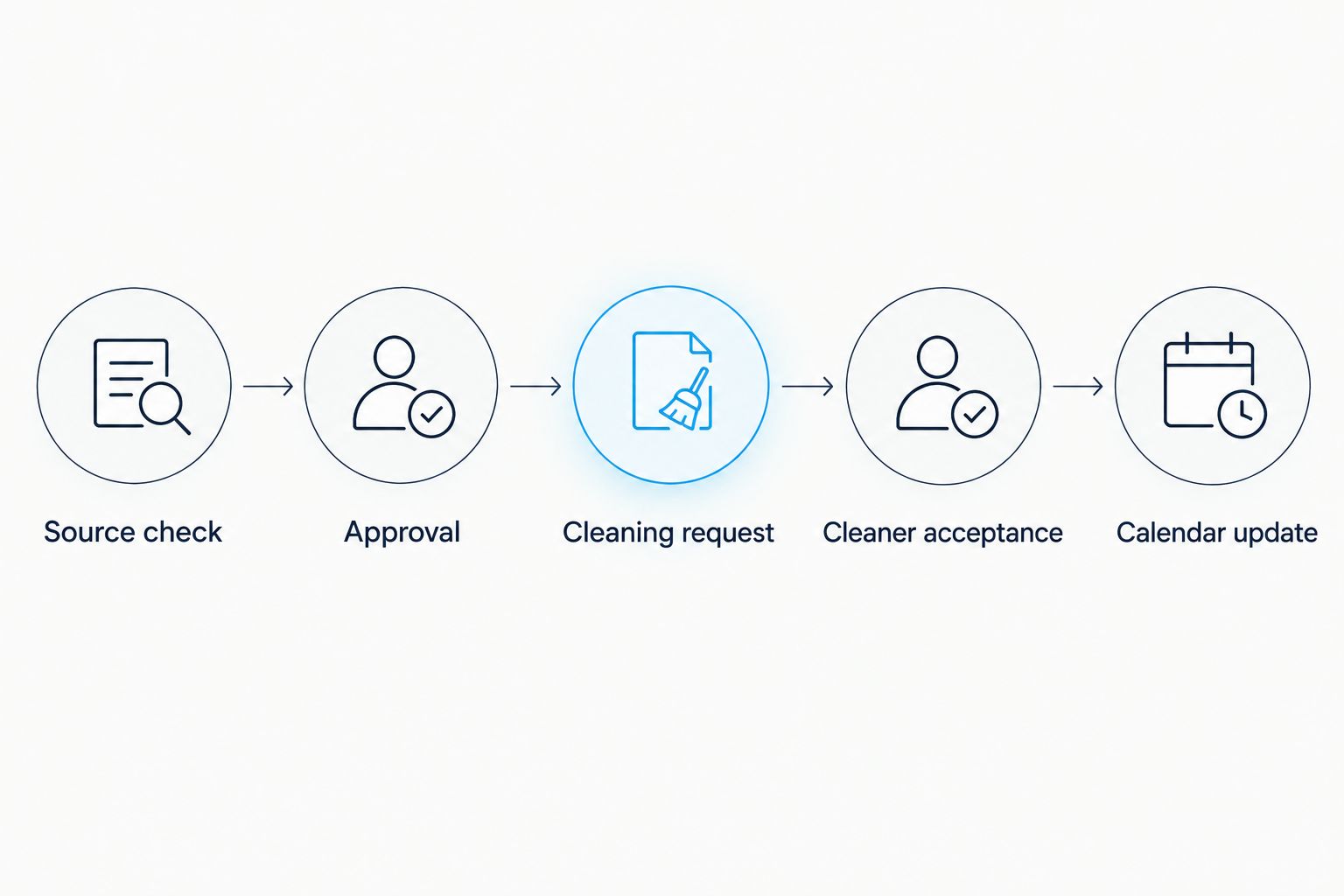
Use the following sequence for your 2026 operating instructions: Source check, Approval, Cleaning request, Cleaner acceptance, Calendar update. Do not skip acceptance merely because the requested date fits your internal calendar.
Keep notifications actionable
Send the coordinator a message when a request needs review, when the cleaner responds and when a confirmed detail changes. Each message should identify the vacate reference and the action required.
Avoid sending every intermediate edit to the cleaner. Review internal corrections first, then send a clear request through the agreed channel.
Test records and release checks
Test the workflow without sending live booking requests. Use clearly marked dummy records and disable external messages until the coordinator has checked the results.
- Test a complete departure. Create 1 test record with approved scope and access. Confirm that approval creates a pending task, not a confirmed booking.
- Test duplicate handling. Process that record again. Confirm that the workflow retains 1 scheduling task for the same vacate reference.
- Test an incomplete departure. Remove the access confirmation or requested date. Confirm that the record goes to review rather than progressing silently.
- Test a changed departure. Move the proposed cleaning date and check that the existing task is flagged for review. The previous confirmed appointment must remain visible until the change is accepted.
- Release deliberately. Record who approved the workflow and when. Check 3 test cases at minimum: a new request, a changed request and a cancellation.
Expected result: The workflow can create, revise and stop a request without duplicate jobs or unsupported confirmations.
Keep a dated 2026 test log with the input, expected result and actual result. Those are operating checks, not evidence of Snug integration support or cleaning performance.
Update cleaning requests when vacate details change
A second useful workflow handles revisions to an existing departure. It should update the same request rather than start a fresh booking process.
- Date changes: Set Approval status to Change pending when the approved removal, access or inspection milestone changes. Ask the coordinator to assess the effect on cleaning.
- Scope changes: Send revised requirements for acceptance. Adding carpet work or leaving furniture in place changes the request; it is not merely a calendar note.
- Cancellations: Stop unsent requests. For an accepted appointment, contact the cleaner through the agreed channel and record the response before marking the booking cancelled.
- Completion: Record completion separately from inspection acceptance. Keep the cleaning confirmation and any agreed follow-up work attached to the same vacate reference.
Retain the existing appointment until the replacement arrangement is accepted. Overwriting a confirmed time with an unaccepted proposal removes the distinction your approval process was built to protect.
Where your supported system cannot detect changes, have the coordinator review the register manually. A visible manual checkpoint is better than an automation that appears to monitor fields it cannot read.
Troubleshooting
No usable vacate information reaches the register
Check the source handoff before changing the scheduling logic. Ask the administrator whether the information exists in the connected source and whether the supported connection includes it; use authorised manual entry where it does not.
The workflow creates duplicate cleaning tasks
Check that every request carries the same stable vacate reference throughout processing. Match against that reference before creation, and test what happens when a record is saved repeatedly or a failed task is retried.
The calendar shows an unconfirmed appointment
Move calendar publication behind the cleaner-acceptance gate. Keep requested and confirmed dates in separate fields, then remove wording that presents an internal request as an accepted booking.
The cleaner receives an old date
Compare the register, pending task and booking reference. Require review after changes, and record the cleaner’s response before replacing the confirmed appointment details.
Access is unresolved when the clean is due
Assign an access coordinator and stop progression when access is unconfirmed. Check furniture removal, keys and building entry with that person rather than asking the cleaner to resolve the tenancy handover.
Customise your workflow
Add reminders for unresolved access, missing scope and unanswered booking requests. Choose reminder timing around your actual inspection and handover arrangements; do not invent a standard cleaning duration or assume every property follows the same schedule.
For a 2026 workflow review, check whether each reminder identifies an owner and an action. A message saying review access is useful only when someone is responsible for arranging it.
Sparkle end-of-lease cleaning can form the service stage of your move-out plan. Keep that service arrangement separate from the software configuration, and confirm the property requirements directly.
FAQ
Can I connect Snug to vacate cleaning schedules automatically?
Use a verified source connection and an approval-controlled scheduling workflow. Confirm the supported Snug connection with your administrator or Snug support before assuming a native connector, API or vacate trigger exists.
What should trigger a vacate cleaning request?
An approved outgoing-tenancy record should trigger the request. Confirm the move-out arrangements, cleaning scope and access before allowing the record to progress.
Does creating a calendar event confirm my bond cleaner?
No. A calendar event records your schedule; the cleaner must separately accept the appointment through the agreed booking channel.
Can I use an incoming tenancy date to schedule the outgoing clean?
Do not use an incoming tenancy date as the sole trigger. Establish when the outgoing property will be empty, when cleaning access is permitted and when the inspection is planned.
What happens if my move-out date changes?
Flag the existing request for review and contact the cleaner about the revised arrangement. Keep the previous confirmed appointment visible until the replacement is accepted.
Can Sparkle provide the end-of-lease cleaning?
Sparkle provides professional end-of-lease cleaning for residential tenants, including carpet steam cleaning, oven deep cleaning and window cleaning. Confirm the requested scope and appointment directly rather than treating an automated task as a booking.
What tenant information should go into a cleaning task?
Include the property address, agreed scope, requested timing and authorised contact. Exclude application documents, identity records and unrelated tenancy information, and handle sensitive access instructions separately.
One last thing
Test a cancellation before trusting a new-booking automation. Creating a task proves only that the workflow can start; stopping the right request proves that the vacate reference, approval gate and booking record stay connected when plans change.
Related guides
- How to schedule end-of-lease cleaning around your inspection date
- How to organise end-of-lease cleaning around a removalist
- How to arrange building access for a high-rise end-of-lease clean
SparkleClean's end-of-lease service comes with a 72-hour re-clean guarantee. Get an instant price — no hidden fees, book in under 3 minutes.